Our social:

Latest Post

Showing posts with label ICT. Show all posts

Thursday, 26 April 2018

GMail Web Interface


Google has finally released the new Gmail web interface with a bunch of improved features. The new interface has a refreshed design and features such as snoozing emails, confidential mode, smart replies and several others.
The new update will bring different layout and features users depending on the typed of Google account they have.

How to enable the new Gmail interface for desktop?

For regular Gmail users

  • Log into your Gmail account from desktop and click on the Gear icon.
  • Select Try the new Mail option
Enable new Gmail
Your Gmail account will immediately get a revamped look but in case you don’t like the new version, it’s easy to roll back to the previous design. Just follow the same steps mentioned above and click on Go back to classic Gmail.


For G Suite users

To enable the new interface in a Gmail account for organizations, you will have to switch to an administrator account and go through the following steps:
  • On the Admin console dashboard, go to Apps
Gsuite gmail activate 1
  • Select G Suite 
Gsuite gmail activate 2
  • A list of apps will appear. Click on Gmail
Gsuite gmail activate 3
  • In the User Settings, scroll down to New Gmail Early Adopter Program
Gsuite gmail activate4
  • Click the radio button for Allow my users access to the new Gmail UI and features
  • Then Save the settings.
It may take up to one hour for the “Try New Gmail” option to appear in the settings of your Gmail account. Once it does, just click on this option and you are good to go. Once you’ve got the new Gmail, do let us know if you found the changes interesting enough

Latest on Ubuntu

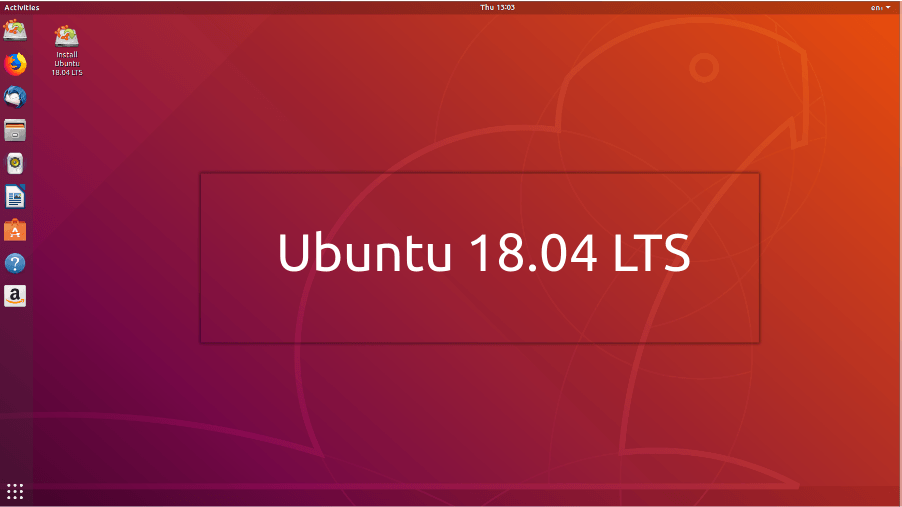
ubuntu 18.04 lts
After months of development and Alpha/Beta releases and a last moment hiccup, Canonical has finally shipped Ubuntu 18.04 LTS “Bionic Beaver.” This is the seventh long-term support release of the world’s most popular open source operating system and it’s available in Desktop, Server, Cloud, and Core versions.
As Ubuntu 18.04 is LTS release, the users will be receiving updates for 5 years, i.e., until April 2023. Talking specifically about different flavors, Ubuntu Desktop, Ubuntu Server, Ubuntu Core, and Ubuntu Kylin will get 5 years support; Ubuntu Studio will get 9 months support; all other flavors will get 3 years support.

New features in Ubuntu 18.04 LTS

It goes without saying that 18.04 brings lots of stability improvements and bug fixes for the Linux enthusiasts. There have been numerous changes as well that have been incorporated in this release cycle to add new features and improve the overall user experience.
The highlight features of 18.04 LTS are as follows. You can also read our dedicated article on the same.
  • GNOME 3.28 desktop
  • Linux kernel 4.15
  • Xorg by default
  • New minimal installation option
  • New installer for Ubuntu Server
  • Color emojis
  • Faster boot time
  • zstd compression support
  • New wallpapers
If you love stability and you haven’t upgraded from Ubuntu 16.04 LTS, 18.04 is going to be a whole new experience due to GNOME desktop environment.
ubuntu 18.04

Upgrade to Ubuntu 18.04 from 16.04 or 17.10

You can upgrade your current Ubuntu installation in the following manner:
  • Open “Software & Updates” in System Settings
  • Select “Updates” tab
  • Set “Notify me of a new Ubuntu version” menu to “For any new version”
  • Type “update-manager -cd” in Terminal
  • Update Manager will open to show: “New distribution release ‘18.04’ is available”
  • Now click Upgrade and follow instructions

Download Ubuntu 18.04 LTS ISO files and Torrents

You can visit this link to get release notes and download links. The same page also features the links for Kubuntu, Lubuntu, Lubuntu Alternate, Ubuntu Budgie, Ubuntu Kylin, Ubuntu MATE, Ubuntu Studio, and Xubuntu.

Tuesday, 13 March 2018

Kali Linux on Windows


Installing and running Linux on Windows 10, also called Linux Subsystem on Windows (WSL), is old news. You can already install distros like Ubuntu, SUSE Enterprise Linux, and openSUSE from Windows Store.
While we continue to wait for Fedora to arrive on Microsoft Store as promised, another favorite distro–Kali Linux–has already made itself available. This news was first announced a couple of weeks ago when the company was testing Xfce desktop for WSL.
As you might be already knowing, Kali Linux is a renowned open source Linux distro widely used for penetration testing purposes. It’s also listed on our list of overall top Linux distros.
Please note that you’ll get a bare-bones Kali Linux installation with no penetration testing tools; so, one will need to install them manually.

Google Plus Codes


Google first created plus codes back in 2014. The free-to-use geocoding system formally known as Open Location Code was added to Google Maps in 2015. Now, Google has brought the system to its Indian users.
If you frequently use Google Maps, you might have seen some random code written on the description pages of different locations. These are known as Plus Codes, and they are designed to make our lives easier.

Plus Codes provide an easy way to identify almost any place that exists on the earth, irrespective of the country or region. It is so because the open location code system is based on the existing latitude and longitude system which uses a grid to divide areas into small tiles forming a grid. A unique code is assigned to each of the tiles.
Remembering the plus code for an area is much simpler than burning your brain circuits while recalling the satellite coordinates. A complete plus code (also referred as global code) contains ten characters in total, with a ‘+’ character before the last two characters. Now, you might have guessed why it’s called a ‘plus code.’
For a given plus code, the first four characters narrow down the area search to a grid of around 100 x 100 kilometers. The remaining 6-character code can help a person pin down to your exact location. It describes the area roughly of the size of a half basketball court, around 14 x 14 meters. An additional accuracy of up to 3 x 3 meters can be achieved.
You don’t need to use the first four digits of a plus code if you’re not searching an international location or someplace far off. The local code in such cases is combined with nearest city or town to make it simpler. For instance, if the place you want to find is a few kilometers away from London, you can use the local code of that place together with the city’s name, i.e. London.


Why Plus Code?

Other than making things more comfortable, there are many benefits offered by plus codes. For instance, an active internet connection isn’t required while encoding and decoding plus codes. So, you can find a place even when you’re running offline mode.
Also, plus codes are not limited to computers and internet. A plus code grid can be printed on a paper and used without the need for an electronic device.

Monday, 12 March 2018

Debian


One of the great things about using a popular Linux distro is that you keep getting timely upgrades, which ensure that you’re running a secure operating system. The same holds true for Debian GNU/Linux, whose development team keeps offering regular updates. Just a couple of days ago, the team pushed the fourth point release of Debian 9 “stretch.”

For those who don’t know, Debian 9.0 series is an LTS edition, and it’ll remain supported for the next five years.

What’s new in Debian 9.4?

Debian 9.4 comes loaded with many fixes for security issues and other serious problems. Separate security advisories for each of the security fixes have been already released earlier.
Just like all the other previous point releases, Debian 9.4 shouldn’t be seen as a major version as it doesn’t come with any new feature. In case you’re already running Debian stretch and you’ve installed all the recommended updates in the past, you won’t be missing much.
To be precise, Debian 9.4 comes with a total 89 bug and performance fixes in different packages; there are new upstream versions of Linux kernel, PostgreSQL, Flatpack, etc.
On the security front, there are 71 updates for packages like Tor, Wireshark, Thunderbird, Firefox, Linux kernel, LibreOffice, Drupal, etc.
While the existing users can install the update via the usual upgrade process, the new users can find a detailed list of the mirrors for download purposes.

S Mode


Since last year, we heard about the stripped off version of Windows 10. Microsoft took the initial step with the release of Windows 10 S which was intended for education customers and to enter the competition against Google’s Chrome OS.
The lightweight Windows 10 S limits the functionality of the operating system by allowing support for Microsoft Store-based UWP apps only. Also, it improves battery life, reduces boot time, keeps a consistent performance over time, etc.
According to a leak in early February, it was known that Microsoft would say goodbye to Windows 10 S in favor of the ‘S Mode’ for its existing Windows 10 versions. Now, the company has confirmed the change in a blog post.
“Based on that feedback, we are simplifying the experience for our customers. Starting with the next update to Windows 10, coming soon, customers can choose to buy a new Windows 10 Home or Windows 10 Pro PC with S mode enabled, and commercial customers will be able to deploy Windows 10 Enterprise with S mode enabled,” wrote Joe Belfiore who is Microsoft’s corporate vice president.
The S Mode will arrive in the next Windows 10 update. Also, in the coming months, vendors will start shipping Windows 10 Home and Windows 10 Pro devices with S Mode enabled.
Unlike the case of Windows 10 S where the users need to pay an upgrade fee to switch to Windows 10 Pro, moving in and out of the S Mode won’t cost anything to users. It doesn’t matter what edition they are running.

Oracle Database 18c


Oracle Unveils World’s First Autonomous Database


At Oracle OpenWorld 2017, Oracle Chairman of the Board and CTO Larry Ellison unveiled his vision for the world’s first autonomous database cloud. Powered by Oracle Database 18c, the next generation of the industry-leading database, Oracle Autonomous Database Cloud uses ground-breaking machine learning to enable automation that eliminates human labor, human error and manual tuning, to enable unprecedented availability, high performance and security at a much lower cost.
“This is the most important thing we’ve done in a long, long time,” said Ellison. “The automation does everything. We can guarantee availability of 99.995 percent, less than 30 minutes of planned or unplanned downtime.”
The Oracle Autonomous Database Cloud eliminates the human labor associated with tuning, patching, updating and maintaining the database and includes the following capabilities:
  • Self-Driving: Provides continuous adaptive performance tuning based on machine learning. Automatically upgrades and patches itself while running. Automatically applies security updates while running to protect against cyberattacks.
  • Self-Scaling: Instantly resizes compute and storage without downtime. Cost savings are multiplied because Oracle Autonomous Database Cloud consumes less compute and storage than Amazon, with lower manual administration costs.
  • Self-Repairing: Provides automated protection from downtime. SLA guarantees 99.995 percent reliability and availability, which reduces costly planned and unplanned downtime to less than 30-minutes per year.

The Oracle Autonomous Database Cloud handles many different workload styles, including transactions, mixed workloads, data warehouses, graph analytics, departmental applications, document stores and IoT. The first Autonomous Database Cloud offering, for data warehouse workloads, is planned to be available in calendar year 2017.

Oracle Autonomous Data Warehouse Cloud

Oracle Autonomous Data Warehouse Cloud is a next-generation cloud service built on the self-driving Oracle Autonomous Database technology using machine learning to deliver unprecedented performance, reliability and ease of deployment for data warehouses. As an autonomous cloud service, it eliminates error-prone manual management tasks and frees up DBA resources, which can now be applied to implementing more strategic business projects.
“Every organization is trying to leverage the overwhelming amount of data generated in our digital economy,” said Carl Olofson, research vice president, IDC. “With a history of established leadership in the database software market segment, it is no surprise that Oracle is pioneering a next-generation data management platform. Oracle Autonomous Data Warehouse Cloud is designed to deliver industry-leading database technology performance with unmatched flexibility, enterprise scale and simplicity. The intent is to ensure that businesses get more value from their data and modernize how data is managed.”
Highlights of the Oracle Autonomous Data Warehouse Cloud include:
  • Simplicity: Unlike traditional cloud services with complex, manual configurations that require a database expert to specify data distribution keys and sort keys, build indexes, reorganize data or adjust compression, Oracle Autonomous Data Warehouse Cloud is a simple “load and go” service. Users specify tables, load data and then run their workloads in a matter of seconds—no manual tuning is needed.
  • Industry-Leading Performance: Unlike traditional cloud services, which use generic compute shapes for database cloud services, Oracle Autonomous Data Warehouse Cloud is built on the high-performance Oracle Exadata platform. Performance is further enhanced by fully-integrated machine learning algorithms which drive automatic caching, adaptive indexing and advanced compression.
  • Instant Elasticity: Oracle Autonomous Data Warehouse Cloud allocates new data warehouses of any size in seconds and scales compute and storage resources independently of one another with no downtime. Elasticity enables customers to pay for exactly the resources that the database workloads require as they grow and shrink.

Oracle Database 18c

Oracle Autonomous Database Cloud is powered by the next generation of the world’s #1 database, Oracle Database 18c. Oracle Database 18c delivers breakthrough automation capabilities, as well as greatly enhanced OLTP, analytics and consolidation technologies.

Thursday, 1 February 2018

Some Components of Smartphone (Camera)


Camera
All smartphones come with a rear-facing and front-shooting camera. A smartphone comprises up of three main parts:


  • The sensor (which detects light)
  • The lens (the component in which light comes through)
  • The image processor
While the megapixels on the smartphone are still an important part of the camera, it carries less importance than it did a while back. Instead, the primary limiting factor is the camera sensor of the phone and how sensitive it is when light passes through the lens.
Remember, each sensor behaves very differently in a different smartphone, so every single image or video that you capture will be a variation of contrast, color accuracy, saturation and several others compared to a different handset. Most camera apps have manual settings so you can capture an image or video based on your own settings, but most devices don’t have such an extended list of controls.
Since smartphones have small sensor sizes, they tend to perform badly in low-light areas. This is an area where camera sensor manufacturers have worked incessantly to improve considerably, but they have a long road ahead of them it appears.


Some Components of Smartphone (Sensors)


Sensors

There are five main sensors in a smartphone that allow it to give you that functionality of a ‘touch-enabled smart device’. The names of all these sensors and their importance have been detailed below:

  1. Accelerometer: Used by apps to detect the orientation of the device and its movements, as well as allow features like shaking the phone to change music.
  2. Gyroscope: Works with the Accelerometer to detect the rotation of your phone, for features like tilting phone to play racing games or to watch a movie.
  3. Digital Compass: Helps the phone to find the North direction, for map/navigation purposes.
  4. Ambient Light Sensor: This sensor is automatically able to set the screen brightness based on the surrounding light, and helps conserve battery life. This would also explain why your smartphone’s brightness is reduced in low-light environments, so it helps to reduce the strain on your eyes.
  5. Proximity Sensor: During a call, if the device is brought near your ears, it automatically locks the screen to prevent unwanted touch commands.
Now that you have more information on the intricate things that happen inside a smartphone, you can judge your future purchase by comparing the various different components that are present in these modern day computing devices.

Some smartphone Components (Modem)


Modem

Smartphones have communication components to receive and send text messages and calls. That’s where modems(modulator demodulator) come in, and every SoC manufacturer has their own brand of modems, and this includes Qualcomm, Samsung, Huawei and several others.
These manufacturers are also battling it out to release the fastest and efficient category of LTE chips, so if you have come across the term Cat. 9 LTE modem, that is the fastest one out there. However, if your own cellular network does not support those level of speeds, then there’s absolutely no point of having such powerful chips present in smartphones.
Still, companies are going to do their best to make sure they produce the latest and greatest chips of their desired category.

Some Components of Smartphone (Memory)


Memory and storage
Smartphones  function better with the use of RAM and memory (system storage). First, let’s talk about the RAM; most mobile devices are shipped with LPDDR3 or LPDDR4, while some high-end smartphones are shipped with LPDDR4X RAM. ‘LP’ stands for ‘Low-Power,’ and it reduces the total voltage of these chips, making them highly efficient and giving mobile phones the extended battery life.
LPDDR4 is more efficient and powerful than LPDDR3, while LPDDR4X is the holy grail of RAM, resulting in unprecedented speeds and efficiency. LPDDR4X is more expensive to produce though, which is why you only see them in flagship smartphones. When newer generations of RAM are going to be introduced, such as LPDDR5, then you guys will see the flourishing of LPDDR4X memory in mid-ranged devices.
As for internal storage, it exists as the flash memory, ranging from 32GB, and can go all the way up to 256GB on some phones. Naturally, as the requirements of users start to rapidly increase based on the amount of storage that they use, phone manufacturers will exponentially increase the amount of RAM present in smartphones. When you fire up your device for the very first time, one thing that you’ll notice is that the advertised storage is not the same value as running on the phone.
For example, a phone featuring 64GB of storage will probably have between 53-55GB available for your personal use. Well, that’s because the smartphone’s operating system and pre-installed applications require that initial internal memory.

Some Components of Smartphone (SoC)


‘System-on-a-chip’ or SoC

The SoC is perhaps the most important component present in a smartphone, and some users might confuse it as being the processor of the device. However, it is far more than that; the SoC not only comprises up of the smartphone’s CPU, but GPU, LTE modem, display processor, video processor, and other bits of silicon that turn it into a functional ‘system’ in a phone.
While you might see phones touting different SoCs from Qualcomm, MediaTek, Samsung, Huawei’s own Kirin and Apple’s own developed chipsets, they are using the same system architecture from ARM. ARM functions by not only producing their own processors and GPUs but by also licensing their design and system architecture to other companies, so they are able to use their technology to make powerful and efficient SoCs.
Some companies also use architectural licenses so that they are able to make their proprietary processors for use in smartphones as long as they are compatible with ARM’s system architecture. Examples of these will be Apple’s custom-made chipsets running custom-developed Cyclone processing cores, or Qualcomm’s Kryo processors.

Some Components of Smartphone (Batteries)


Battery

Batteries of phones normally use lithium-ion technology that are either removable or non-removable in mobile devices. With these batteries, which an important component of a smartphone, you will not have to worry about ‘calibration’ or ‘testing’ issues that were plagued with nickel-based cells. Still, this does not mean that current-generation batteries are not filled with their own issues, and users have to be very careful when handling and using volatile components like these.

Some Components of Smartphone (Display)


There is a group of very complex components of a smartphone but that’s definitely not our first thought when we head out to purchase one, is it? However, it is still important to know the basic layers of hardware that help your device to function. Today we shall be breaking down the core parts present in what’s become as one of the essential devices of today’s computing age. Are you ready to find out more what’s inside a smartphone? Then let us begin.

Display

Perhaps the most obvious components of a modern smartphone is its display, and while every detail you see is on the outside, it is actually an internal component of the device. Display technologies in smartphones of today come in two main types:
  • Those based on LCDs (IPS technology and its variations)
  • Those based on LEDs (AMOLED or Super AMOLED and its variations)

LCD vs LED

On an LCD-based display, there is a backlight that is shining through some polarizers, and it is shining through some filters. And by manipulating the crystal display, you can see a boatload of different colors on the other side. What this means in simple terms is that the light is not being generated by the display itself; it is being generated by the light behind the display, and only some of it is coming from the other side.
Now, on an LED-based display, the light-emitting-diodes are doing all the magic. All the pixels that you can or cannot see are being emitted by these minuscule light-emitting-diodes (also know as LEDs and they produce red, green, and blue colors).
Over here, it is the display itself that is generating the different and vibrant colors. The advantage of AMOLED or Super AMOLED displays over its IPS LCD counterparts is that when a pixel is off and you can see a black color, it is not using up any battery, which is why smartphones that feature AMOLED displays are more efficient in delivering extended periods of battery life.
With an LCD display, however, if you’re seeing black, the crystal display is being manipulated so that none of the light gets through. However, the light behind the display is still being generated meaning that the smartphone will be using small bits of the battery.

Thursday, 25 January 2018

Components of a Desktop Computer (keyboard and Mouse)


Keyboard and Mouse

Most interactions with a computer involve using a keyboard and a mouse. The keyboard allows the user to type letters and numbers and the mouse allows the user to position the cursor, draw and execute program functions by clicking mouse buttons.

Besides basic typing, many other actions can be performed on the keyboard using function keys, cursor keys, control keys or keyboard macros. However, many all these actions are duplicated by mouse use. These days many users choose to operate the computer by mouse rather than using keyboard keys. For good posture, it's important to align the center of your body with the center of the part of the keyboard you use the most, usually either the alphabetic area or the numeric keypad.

Components of a Desktop Computer (VDU)


Visual Display Unit (Monitor)
It is an output device connected to a computer which displays the desired graphics output produced by the graphics processing unit of the computer. Generally known as a monitor, a computer display can be an LCD (Liquid Crystal Display) based or LED (Light Emitting Diode) based. Earlier computer display monitors were based on Cathode Ray Tube (CRT) but these became obsolete as more compact and advanced LCD and LED panels gained popularity.
For desktop computers, the display unit remains separate than the rest of the computer components. Desktop computers are useful for long usage schedules. Having a separate monitor also makes the replacement process easier if something goes wrong with the display.
The computer can connect to the display via different connection modes like VGA, HDMI, DVI, DisplayPort, etc. Intel’s Thunderbolt offers video output as well as data transfer through the same connection interface for different devices.
For laptops and netbooks, the display unit is separate but attached to the chassis housing the computer components for the reason of making it compact. This adds to the mobility and ease offered to the user. These displays use a different type of video cable to connect to the motherboard. AIOs provide best of both worlds by providing the display and the computer components in the same body.

Components of a Computer (PCI)


Peripheral Component Interconnect (PCI)

A Peripheral Component Interconnect (PCI) slot is a connecting apparatus for a 32-bit computer bus. These tools are built into the motherboards of computers and devices in order to allow for the addition of PCI devices like modems, network hardware or sound and video cards.
In older personal computers, users often took advantage of PCI slots to integrate relatively primitive modems as well as video and graphics capacity into the hardware setup, or to "expand computing." Some referred to these slots in the motherboard as connectors for internal devices, as opposed to external additions. Generally, these kinds of connections are not plug-and-play, but require the use of specific drivers for the central computing systems to recognize whatever is connected to the PCI slot.
As computing technology has evolved, in many cases the more sophisticated PCI express (PCI-E) slots have replaced the older PCI slots. However, many devices still have the ability to connect to peripherals through these kinds of ports and connections.

Components of a Desktop Computer (Power Pack)


Power Pack (Power Supply)
A power supply unit (or PSU) converts mains AC to low-voltage regulated DC power for the internal components of a computer. Modern personal computers universally use switched-mode power supplies. Some power supplies have a manual switch for selecting input voltage, while others automatically adapt to the mains voltage.
Most modern desktop personal computer power supplies conform to the ATX specification, which includes form factor and voltage tolerances. While an ATX power supply is connected to the mains supply, it always provides a 5 Volt standby (5VSB) voltage so that the standby functions on the computer and certain peripherals are powered. ATX power supplies are turned on and off by a signal from the motherboard. They also provide a signal to the motherboard to indicate when the DC voltages are in spec, so that the computer is able to safely power up and boot. The most recent ATX PSU standard is version 2.31 of mid-2008.

Wednesday, 24 January 2018

Component of a desktop Computer (Hard drive)


Hard drive
It is a large and permanent storage space which is used to keep all the data required by a computer like the operating system files, songs, videos, and third-party software files, etc. When needed, the data is transferred from the hard drive to the random access memory for being used by the CPU.
This memory can be a magnetic rotating hard disk drive (HDDs) or a Solid State Drive (SSD). Hard Drive is common than the newer SSDs as they are cheap but SSDs are way faster. These HDDs and HDDs connected to the computer through the SATA interface-based storage connectors present on the motherboard.

Components of a Desktop Computer (Ram)


RAM
Random Access Memory is one of the vital parts of a computer. If you take out the RAM chip out of your computer, it won’t start. It is faster than the hard drives and is used to store program data which is currently used by the CPU. But RAM suffers from short-term memory loss. What does it mean? It holds data only when it receives power. Once you turn off your computer all the data will be lost. That’s the reason it can’t be used as a permanent storage solution in a computer.
The RAM chips we use on our laptop and desktops differ in size. The reason is to make the memory chip compact for the laptops. But they have the same functionality and powers. Dynamic RAM integrated circuits, known as Dual-Inline Memory Module (DIMM), are mounted on green colored PCB and then called as DIMM chips. Memory variants like DDR, DDR2, DDR3, DDR4, etc. differ in the number of pin counts they have.
Before DIMMs, SIMMs used to exist. The key difference between the two is the number of pin counts. SIMMs have half the number of pins than DIMMs. However, the number of pins will appear the same if you take a casual look on them. A keen observation would lead to a conclusion that the pins on either side of a SIMM are connected to each other which is not the case with DIMM.
Also, the SIMM supports a 32-bit data bus while DIMM supports 64-bit data bus. This allows the flow of more data in the case of DIMM. The modern 64-bit CPUs would require an installation of two SIMMs chips.A single DIMM would be sufficient for that. Hence, the SIMMs became obsolete with time.